iPhone Battery Health Tips You Need To Know ?
Few Overview Tips –
1) Keep your battery from going to 0% or 100%
2) Avoid charging your battery beyond 92%
3) Charge slowly if you can
4) Turn off WiFi and Bluetooth if you’re not using them.
5) Manage your location services.
6) Let your assistant go.
7) Don’t close your apps, manage them instead
8) Keep that brightness down
9) Make use of smart battery modes
10) Embrace the dark mode (if you have an OLED screen)..
“Battery life” is the amount of time your device runs before it needs to be recharged. “Battery lifespan” is the amount of time your battery lasts until it needs to be replaced. Maximise both and you’ll get the most out of your Apple devices, no matter which ones you own.
Steps You Need To Follow –
Update to the latest software– Apple software updates often include advanced energy-saving technologies, so always make sure your device is using the latest version of iOS, macOS or watchOS.
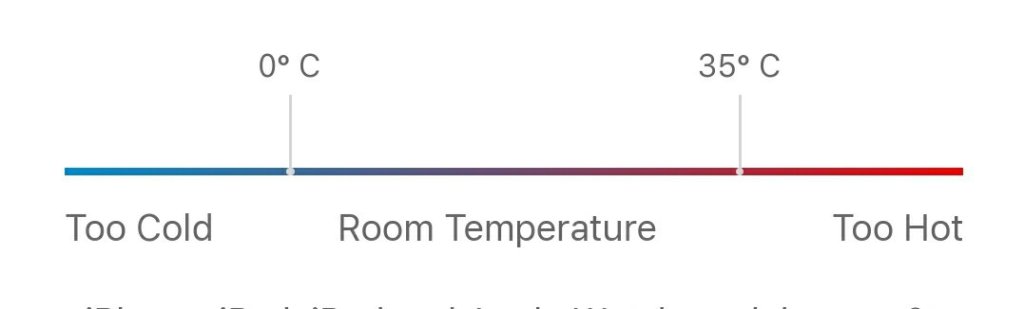
Avoid extreme ambient temperatures – Your device is designed to perform well in a wide range of ambient temperatures, with 16° to 22° C (62° to 72° F) as the ideal comfort zone. It’s especially important to avoid exposing your device to ambient temperatures higher than 35° C (95° F), which can permanently damage battery capacity. That is, your battery won’t power your device as long on a given charge. Charging the device in high ambient temperatures can damage it further. Software may limit charging above 80 per cent when the recommended battery temperatures are exceeded. Even storing a battery in a hot environment can damage it irreversibly. When using your device in a very cold environment, you may notice a decrease in battery life, but this condition is temporary. Once the battery’s temperature returns to its normal operating range, its performance will return to normal as well.
Too ColdRoom TemperatureToo Hot
iPhone, iPad, iPod and Apple Watch work best at 0° to 35° C (32° to 95° F) ambient temperatures. Storage temperature: –20° to 45° C (–4° to 113° F).
iPhone, iPad, iPod and Apple Watch Comfort Zone
iPhone, iPad, iPod and Apple Watch work best at 0° to 35° C (32° to 95° F) ambient temperatures. Storage temperature: –20° to 45° C (–4° to 113° F).
Remove certain cases during charging – Charging your device when it’s inside certain styles of cases may generate excess heat, which can affect battery capacity. If you notice that your device gets hot when you charge it, take it out of its case first. For Apple Watch Edition models, make sure the cover of the magnetic charging case is off.
Store it half-charged when you store it long term– If you want to store your device long term, two key factors will affect the overall health of your battery: the environmental temperature and the percentage of charge on the battery when it’s powered down for storage. Therefore, we recommend the following:
Do not fully charge or fully discharge your device’s battery — charge it to around 50 per cent. If you store a device when its battery is fully discharged, the battery could fall into a deep discharge state, which renders it incapable of holding a charge. Conversely, if you store it fully charged for an extended period of time, the battery may lose some capacity, leading to shorter battery life.
Power down the device to avoid additional battery use.
Place your device in a cool, moisture-free environment that’s less than 32° C (90° F).
If you plan to store your device for longer than six months, charge it to 50 per cent every six months.
Depending on how long you store your device, it may be in a low-battery state when you remove it from long-term storage. After it’s removed from storage, it may require 20 minutes of charging with the original adapter before you can use it.
Optimise your settings – There are two simple ways you can preserve battery life — no matter how you use your device: adjust your screen brightness and use Wi-Fi.
Dim the screen or turn on Auto-Brightness to extend battery life.
To dim, open Control Centre and drag the Brightness slider to the bottom.
Auto-Brightness adjusts your screen to lighting conditions automatically. To activate it, go to Settings > General > Accessibility > Display Accommodations and set Auto-Brightness to On.
When you use your device to access data, a Wi‑Fi connection uses less power than a cellular network — so keep Wi‑Fi on at all times. To turn on Wi‑Fi, go to Settings > Wi‑Fi to access a Wi‑Fi network.
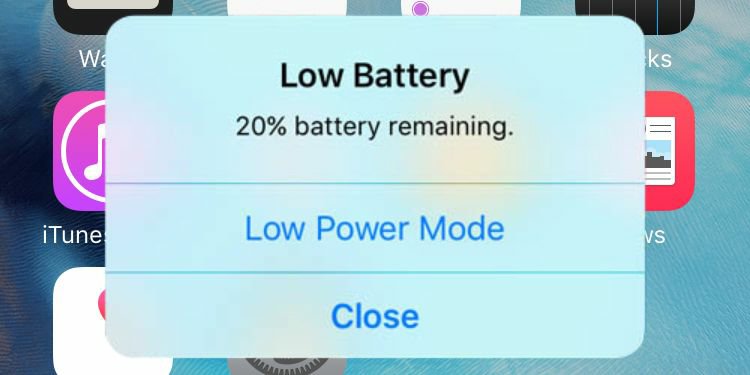
Enable Low Power Mode – Introduced with iOS 9, Low Power Mode is an easy way to extend the battery life of your iPhone when it starts to get low. Your iPhone lets you know when your battery level goes down to 20 per cent, and again at 10 per cent, and lets you turn on Low Power Mode with one tap. Or you can enable it by going to Settings > Battery. Low Power Mode reduces display brightness, optimises device performance and minimises system animations. Apps including Mail will not download content in the background, and features like AirDrop, iCloud sync and Continuity will be disabled. You can still use key functions like making and receiving phone calls, email and messages, accessing the Internet and more. And when your phone charges up again, Low Power Mode automatically switches off.
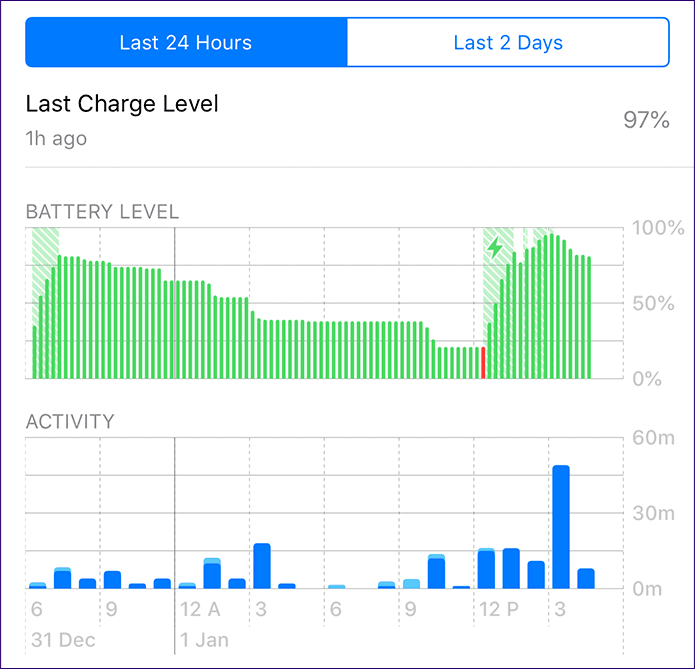
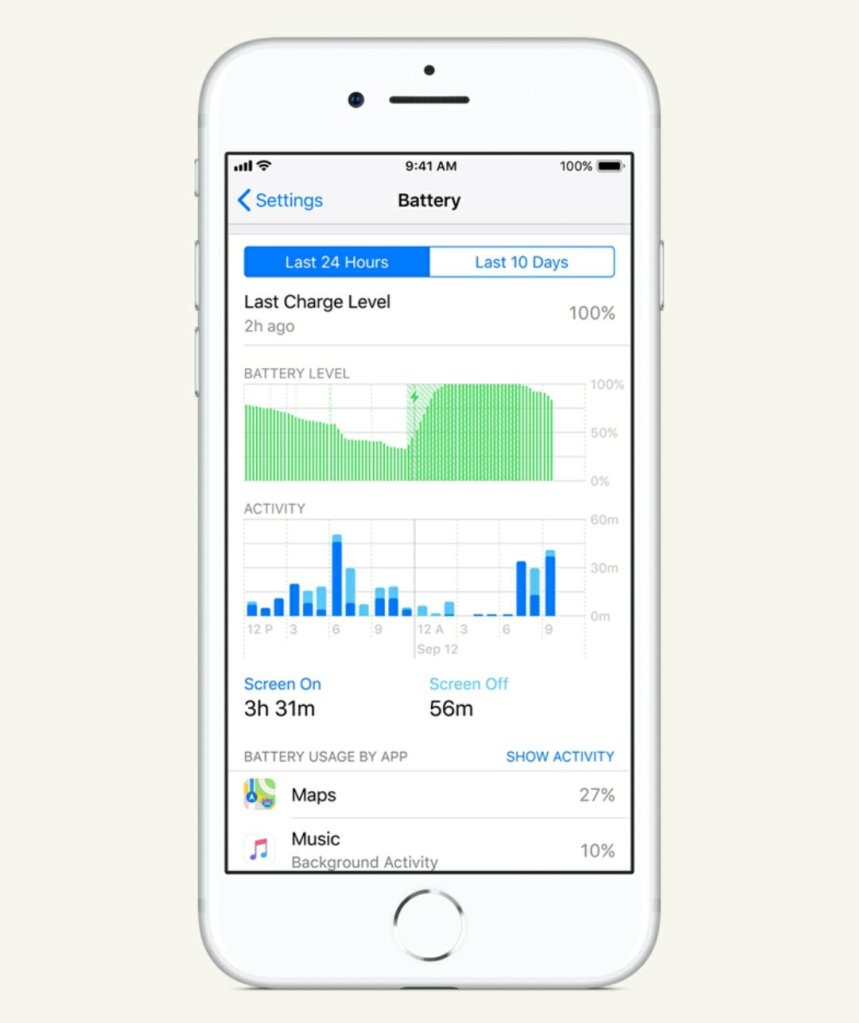
View Battery Usage information – With iOS, you can easily manage your device’s battery life, because you can see the proportion of your battery used by each app (unless the device is charging). To view your usage, go to Settings > Battery.
Here are the messages you may see listed below the apps you’ve been using:
Background Activity. This indicates that the battery was used by the app while it was in the background — that is, while you were using another app.
To improve battery life, you can turn off the feature that allows apps to refresh in the background. Go to Settings > General > Background App Refresh and select Wi-Fi, Wi-Fi & Mobile Data, or Off to turn off Background App Refresh entirely.
If the Mail app lists Background Activity, you can choose to fetch data manually or increase the fetch interval. Go to Settings > Accounts & Passwords > Fetch New Data.



 Techselect
One response to “This Could Be A Life Saver One day !!”
[…] This Could Be A Life Saver One day !! […]
LikeLike